

Registration Instructions for Summer Camp 2021
-
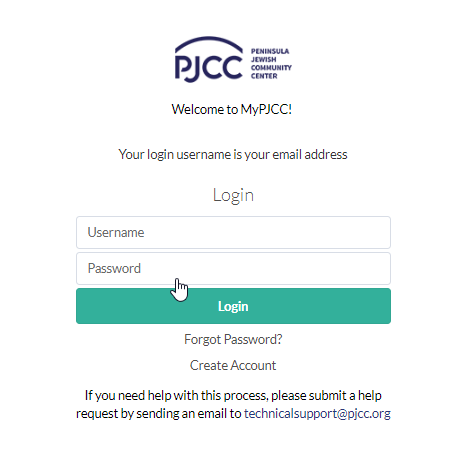
Using your credentials, login into MyPJCC.
-
If you do not have an account, create one by clicking Create Account.
-
If you do not know your credentials or are having trouble logging in, email Technical Support
-
-
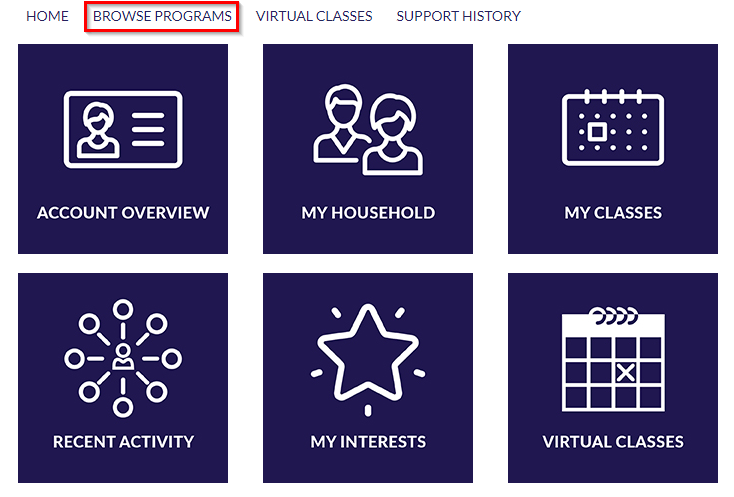
Click Browse Programs.
-
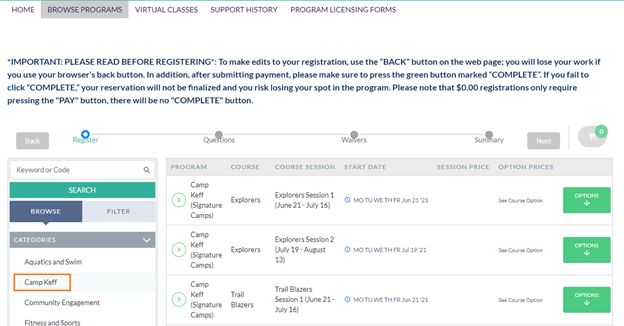
Click on Camp Keff.
-
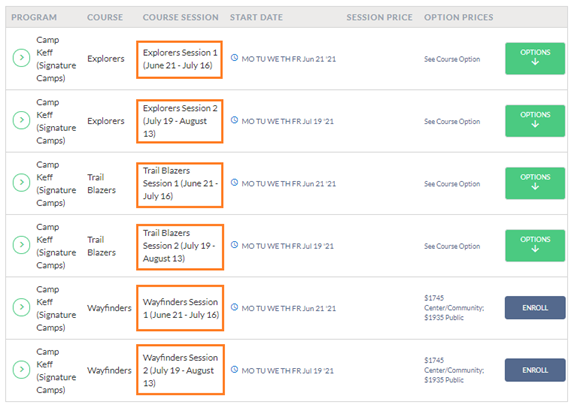
View the different Summer Camp sessions.
-
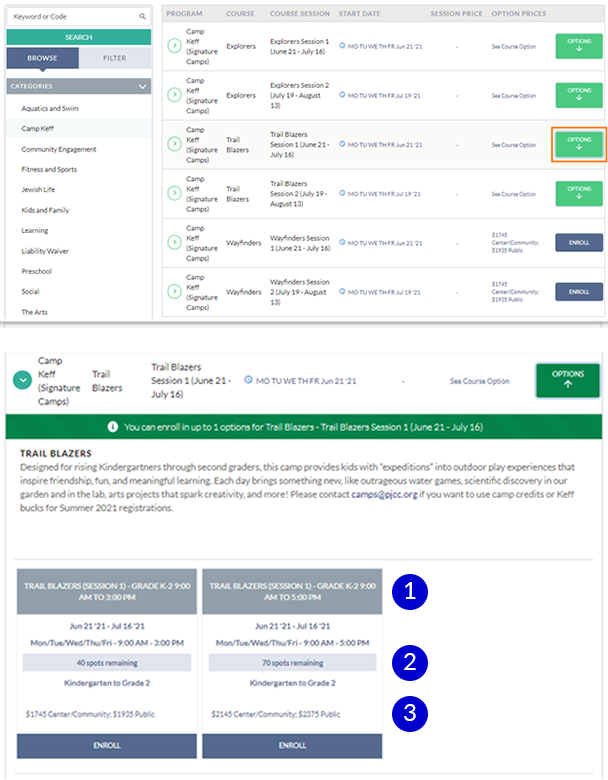
Choose your preferred week. Once you click Options, you can either register for individual days or for the entire week. Choose the correct option for the child. *Note that if there is only one option for the week (i.e., Winter Camp 2020 1/4) the button will read Enroll.
-
Camp name
-
Number of spots remaining in the camp
-
Price of the camp
-
-
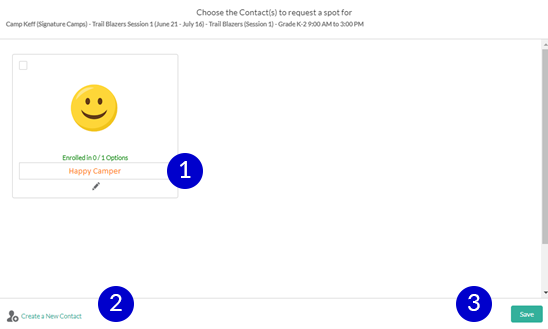
When ready to register, click Enroll on the camp you want to register for. This will open a window that displays all the contacts in your household.
-
If a contact is age eligible for a camp, you will be able to select their name. If a contact is not age eligible for a camp, their name will be grayed out.
-
If the name of the child you wish to register is not listed, click Create a New Contact.
-
Once you've selected your contact, click Save.
-
-
Click Next.

-
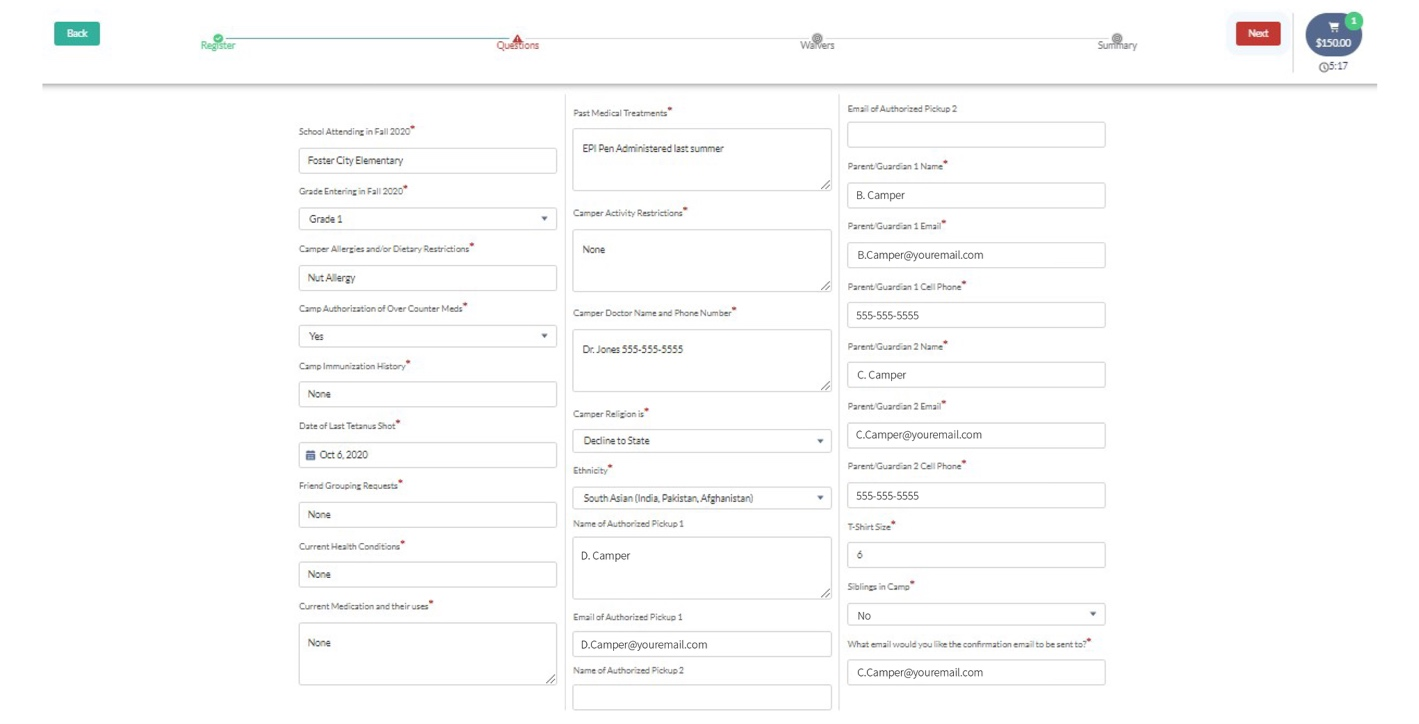
This will bring you to the custom questions for this child. Select the child name and complete all of the required questions (marked by a red start). Click Next when done.
-
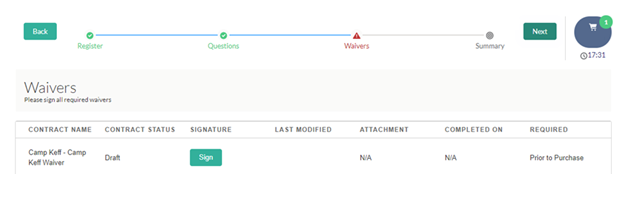
This will show you any required waivers for you to sign. Click Sign for each waiver and then Next.
-
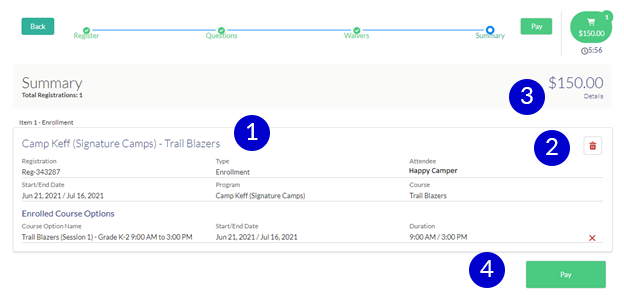
This will display all the details pertaining to your camp registration.
-
Review the name of the camp you are registering for.
-
To delete the registration, click the trash can icon.
-
If you want more details, click Details.
-
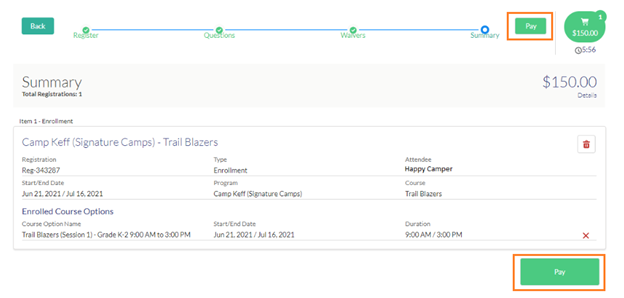
To add another camp, see step 11. If you are ready to pay, click Pay and proceed to step 12.
-
-
If you would like to add a second registration (for this child or another child), click Register.
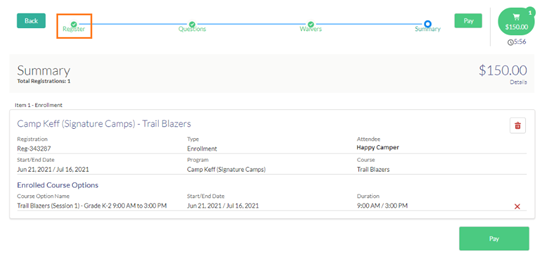
This will bring you to the original registration page, where you can start the registration process from the start.
After you complete the registration process for the second child, you will see a summary with each registration. When you are finished with your registrations, click Pay and proceed to Step #12.
-
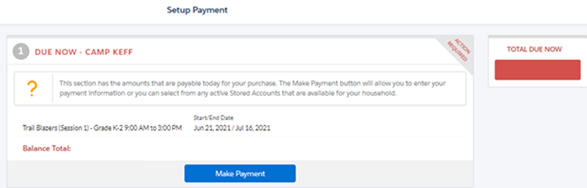
Once you click Pay it will bring you to the Payment Screen. Click Make Payment to set up a payment method or use an existing payment method.
-
Once you’ve set up payment methods, click Done in right corner.